Search, Filter and Manage Users
Search and Filter
- Global settings include searching and filtering by user data. To search for a specific user, type the user's name in the search field.
- To filter by role, select the "Roles" drop-down menu. The filter will also display the number of users in each type of role (e.g. student).
- There is also an option to add a user to the course.

Manage Student Groups
Create and organize student groups. Create groups to put students together for projects and other activities. Students can also create their own groups, allowing them to work collaboratively.

Manage Course Users
To manage course-level user options, click the "global" options drop-down menu.
- View user groups, which are the same as displayed in the global settings at the top of the page.
- View prior enrollments in the course, which display students who were previously enrolled in the course and their enrollments have concluded.
- View a summary of all student interactions in your course. Interactions are recorded when you contact the student via "Conversations" or when you leave a comment on an assignment.
- View registered services for each user in the course. If a person has registered a social media account in Canvas, you can see that service listed and communicate with them through any social media site they have registered.

Manage Individual Users
To manage a user in your course, click the "Options" icon. You can resend course invitations, edit a user, view user details, and view "New Analytics"
Manage Observers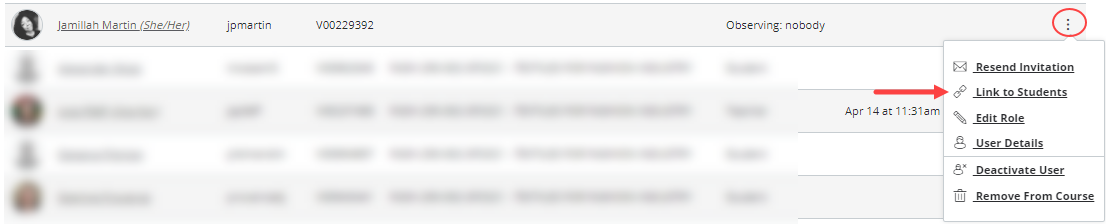
For observer roles, you can link an observer to a student.
View User Enrollment Status
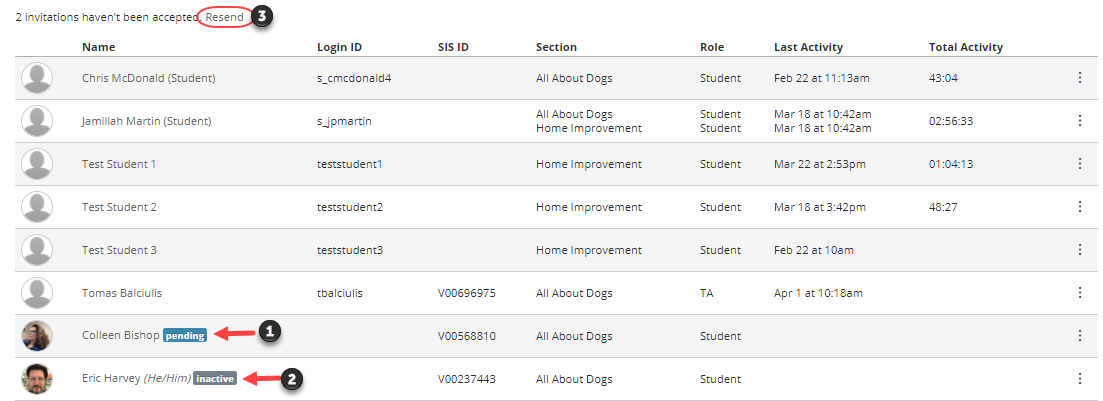
- Once a course is published, users receive an invitation to the course. Users who have not yet accepted the course invitation display a pending status.
- Users who are inactive, will have an inactive status indicator. The inactive status allows you to view a user's prior activity in the course but does not allow the student to access the course.
- To resend course invitations for pending users, click the"Resend" link at the top of the page.