Analytics and Reporting
Find the Last Date of Participation for Students
- Go to the course you need to pull a report from.
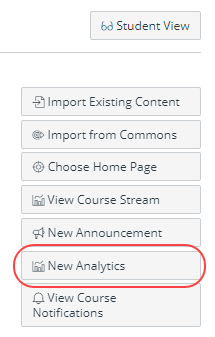
- Click New Analytics, located on the far right-hand side.
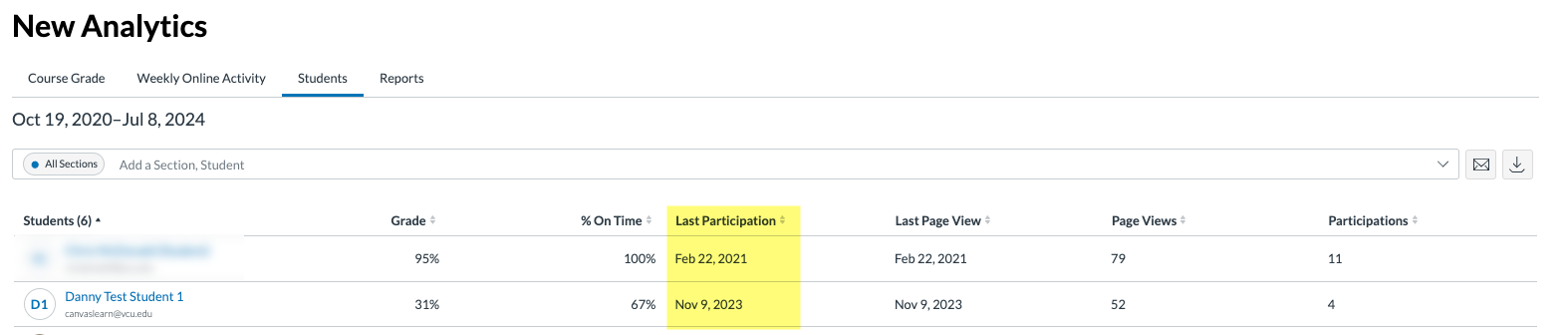
- Go to the Students tab. There will be a column for Last Participation where the date is displayed. This is the date when the student last interacted with the course.
Find the Unique Identifier of a Student
Note: Once a Canvas course is concluded, you will no longer be able to see the student's unique identifier (i.e. Banner ID/V#) on the "People" page.
- Go to the course you need to pull a report from.
- Click New Analytics, located on the far right-hand side.
- Go to the Reports tab.
- Click Run Report beside Class Roster.
- Filter by Section Name and click Run Report. A report will be downloaded to your computer.
- Locate the downloaded file and open. The unique identifier will be the column called Student SS ID and the number will begin with the letter V (a.k.a. the student's V#.)
Note: This information can also be obtained by downloading the gradebook to a .csv file, often needed for grade appeal requests.