Import Course Content
About Importing All Content
- Canvas course imports can be used to upload to a course package from another instructor or from a course package that you exported. These import files are packaged as IMSCC ZIP files
- When imported into a course, course exports have the same limitations as course imports. For more details, please see the import content section in the Canvas Basics Guide.
- Importing a Canvas course package will overwrite some of the existing course settings. Example: If your destination course is set up with a private copyright, and you import a package that has a creative commons (CC) copyright, the copyright license in the destination course will change from Private to CC. Please review the course settings after any import to ensure desired settings are still in place.
- Importing the same course export package more than once will overwrite any existing content in the course. Avoid this by downloading the export file again to create a new course export file before importing it again. When you import the new file, your course will include both the content initially imported and content from the re-downloaded export file.
- Instructors will need to manually subscribe to or enable notifications for discussions and announcements after importing them into a new course
- There are 2 GB of storage allotted for each Canvas course.
- If you import a "New Quizzes" assessment and then import the same assessment again, Canvas will revert to the original assessment. To import changes to a "New Quizzes" assessment, you must duplicate the assessment and then import it.
Instructions for Importing All Content
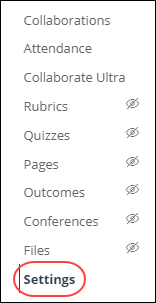
- In Course Navigation, click the Settings link.
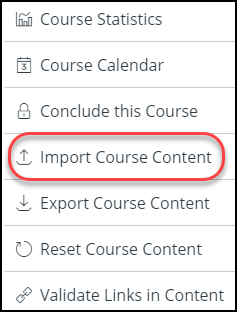
- Click the Import Course Content link located on the right-hand side.
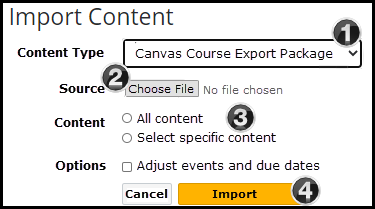
- In the Content Type drop-down menu, choose the Canvas Course Export Package option. [1]
- Find the source file that was downloaded from the export [2] and choose the .imscc file you want to import.
- Select the import All Content. [3]
Optional: Adjust Events and Due Dates - If you want to adjust the due dates associated with the course events and assignments, click the adjust events and due dates checkbox. - Click Import. [4]
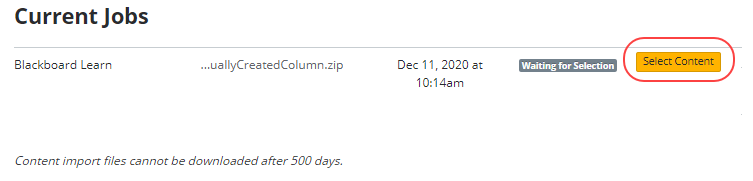
The Current Jobs section displays the status of your import. Running reports display a progress bar indicating the time remaining to complete the import. If you chose to select specific content in your course, the current job will show as Waiting for Select, which means you must select the content you want to import. The import may also display other status indicators as part of the import process. Learn more about course import statuses.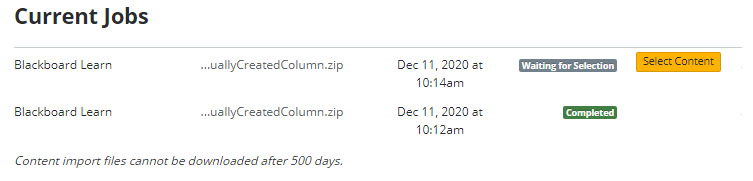
View the content from any completed imports by accessing any link in Course Navigation.
Course Storage Limitations
There are 2 GB of storage allotted for each Canvas course. If you try to migrate a course that is larger than 2 GB, you will receive the following error: "Your migration cannot exceed 2.0 GB." Your course export package file size must be smaller than the quota for your course as shown in course statistics.
About Importing Select Content
- When importing course content with the Course Import Tool, you can choose to select specific content as part of the import. This option allows you to select specific content areas such as assignments, settings, and files without importing the entire course. Not all content can be copied as part of a course.
- Importing a course more than once may have unintended consequences. If you import content into a new course, edit the content in the new course, and later import the previous content again, the imported content will override the existing content.
- If you change your mind after the import has started and you want to import all course content, you can import all content by selecting each item for a content type.
- For information about the Course Import Tool's limitations, view the Course Import Tool overview.
Instructions for Importing Select Content
- In Course Navigation, click the Settings link.
- Click the Import Course Content link.
- In the Content Type drop-down menu, select the Canvas Course Export Package option. [2]
- In the Content section, click the Select specific content radio button. [3]
Optional: Adjust events and due dates - if you want to adjust the due dates associated with the course events and assignments, click the adjust events and due dates checkbox. - Click Import. [4] A progress indicator displays the upload status by percentage.
- In the Current Jobs section, click the Select Content button.
Select All Group Content
Content can be individual items [1] or a content group [2]. Content groups show the number of items within the group. To view content within a group, click the group's expand icon [3].
To import all content for a content type, click the checkbox next to the content name. [4] If the content type is a group, Canvas automatically selects all items within the group.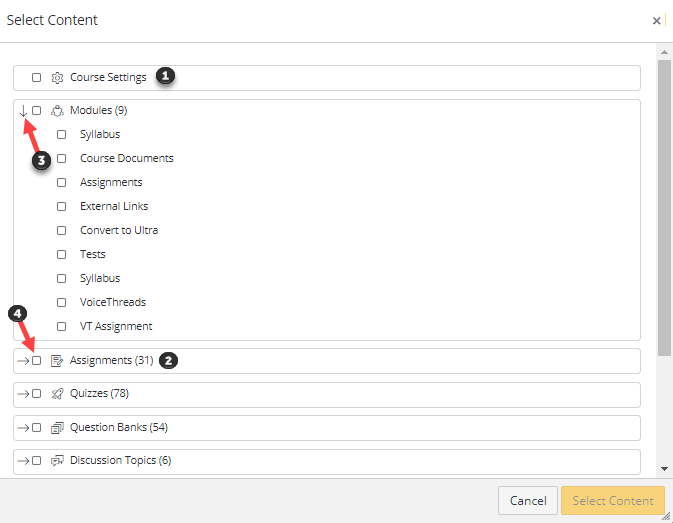
Select Specific Group Content
To import only a few items from a content group, expand the group and select the specific items to be imported [1]. Canvas places a dash in the content group checkbox [2], indicating not all items are selected within the group.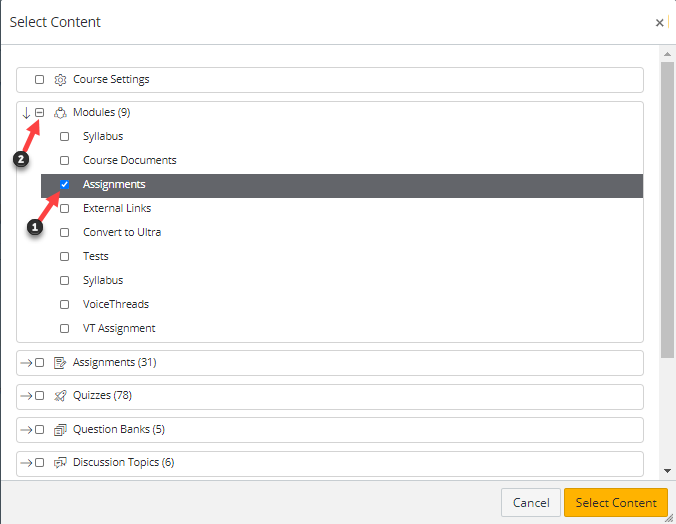
Select Thin Common Cartridge Content
If you imported a Thin Common Cartridge file (Common Cartridge import), this file type is imported directly as "module content". The structure can be expanded to view a nested layout that simulates the content structure. Learn how to select content with Thin Common Cartridge files.
- Click the Select Content button.
The report displays a menu bar with the time remaining to complete the import. View the content from any completed import by accessing any link in "Course Navigation".
The import may display errors as part of the import status. Learn more about course import statuses.