Change Section Start/End Dates
How to Change Your Course Start/End Dates
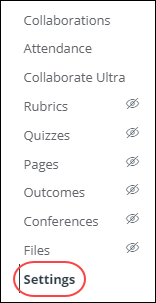
- In Course Navigation, click the Settings link.
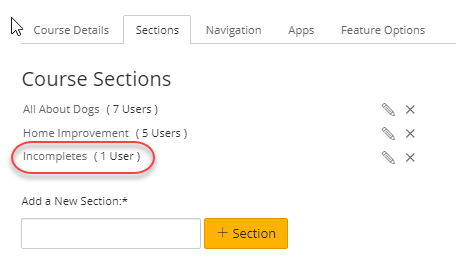
- Click the Sections tab.
- Click the name of the section.
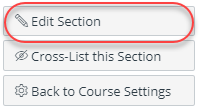
- Click the Edit Section button located on the right-hand side.
- Click the Starts calendar icon and select a new start date for the section.
- Click the Ends calendar icon and select a new end date for the section.
Note: End dates occur at precisely the minute they are set. For example, a section with an end time at 11:59pm will end at 11:59:00.
Limit Student Participation
If you do not want to let students participate in the course section outside of the section dates, select the"Students can only participate in the course between these dates" checkbox.
Selecting this checkbox creates a section override, which overrides the course dates. Students can only participate in the course section between the section dates, and the course section will be in a read-only state outside of these dates.
This checkbox only affects student and observer roles; all other roles default to term access dates.
Notes:
- Section override dates are only created if the Student Participation checkbox is selected.
- If the Student Participation checkbox is not selected, students can participate in the course section before and after the start and end date, and participation will always be determined by the course dates. If a course does not include override dates, dates are determined by term dates.
- When the Student Participation checkbox is not selected, the section dates determine the placement of the course in the Past, Current, or Future Enrollments list for students.
7. Click the Update Section button.