Manage Section Enrollments
Add Course Section Enrollments
Once users have been added to your course, you may be able to edit their course section from the People page. This feature allows you to make modifications to course sections without having to delete the section enrollment.
If a user has not already accepted the course enrollment, editing the course section still requires the user to accept the course invitation. However, if a user has already accepted the initial course enrollment, editing a section does not require the user to accept a new course invitation.
If a user was added to multiple sections in the course with the same user role, adding a section or editing a current section retains the user role given with the course enrollment. However, if the user has multiple user roles, a section edit is associated with the last user role given to the user. Learn how to edit user roles.
Note:
Adding users to a section is a course permission. If you cannot add users to your course, your institution has restricted this feature.
Sections may be added by your institution's student information system (SIS). If a user in your course includes an SIS ID, you may not have permission to edit sections.
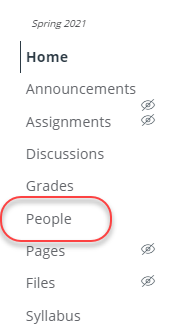
- In Course Navigation, click the People link.
- In the search field, search for the name of the user. You can also filter users by role in the Roles drop-down menu or scroll to find the name.
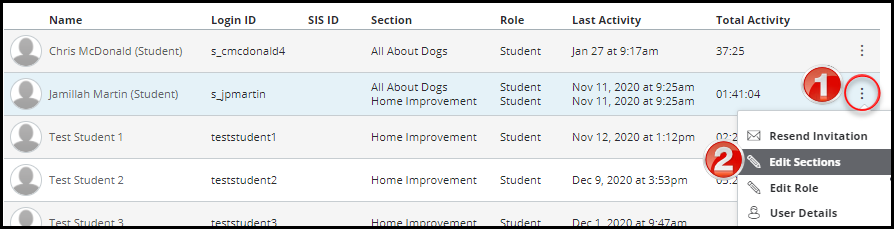
- Beside the user's name, click the options menu icon [1], then select the edit sections link [2].
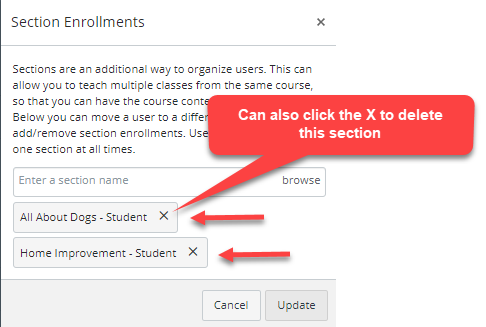
The section(s) where the user is already enrolled will display. You can also delete sections from here as well. - To add a section, begin typing the name of the section in the text field [1] and click the section when it appears [2]. Note: Users can be in more than one section. You do not need to remove the original section.
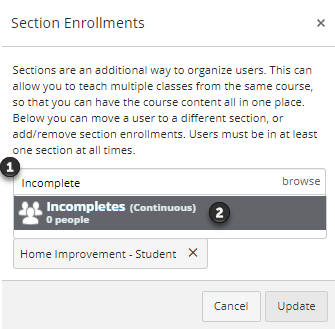
- click the update button.
Remove Course Section Enrollments
You may be able to remove section enrollments within your course settings in Canvas. Removing an enrollment removes all associated coursework and grades from the course.
Section enrollments also include the Test Student, which is created when you enable Student View. If you need to remove the Test Student from the Gradebook, you can do so from the "enrolled" section. Note that the Test Student may be part of more than one section.
Note:
- Sections may be added by your institution's student information system (SIS). If a section in your course includes an SIS ID, you may not have permission to remove section enrollments.
- If you want to retain enrollment information for the user, you may be able to "conclude" the enrollment instead.
- In Course Navigation, click the settings link.
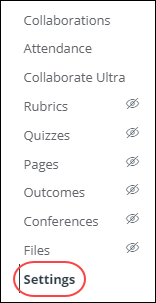
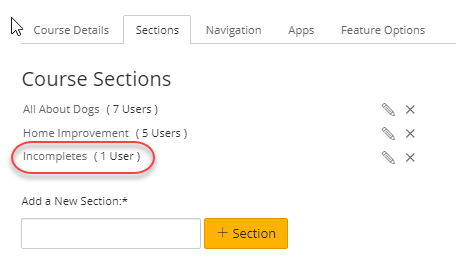
- Click the sections tab.
- Click the name of the section.
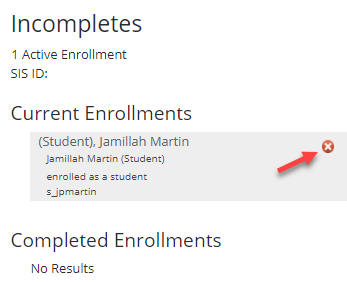
- Hover over the enrollment and click the delete icon.
- Click the OK button.
View Course Section Enrollments
You can view section enrollments within your course settings in Canvas.
Section enrollments also include the Test Student, which is created when you enable Student View.
- Click the name of the section.
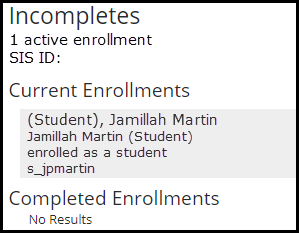
- View current and completed enrollments, if any, in the section. Students are listed in alphabetical order by last name.