How to Perform a Custom Cross-Listing (Merge) of Your Courses
This new process should be followed when the parent course needs to be updated with a custom name.
IMPORTANT TO NOTE: Cross-listing should be done while courses are unpublished. DO NOT cross-list after you have published your course and students have accessed it. Coursework is retained within the course, not within the sections, so if a published course is cross-listed after publishing, all cross-listed enrollments will lose any associated assignment submissions and grades.
Accessing the Tool
Access the Custom Course merge tool by going to: https://go.vcu.edu/canvas-crosslist, or by going through the steps to cross-list your course within Canvas. These steps are illustrated in the VCU video below.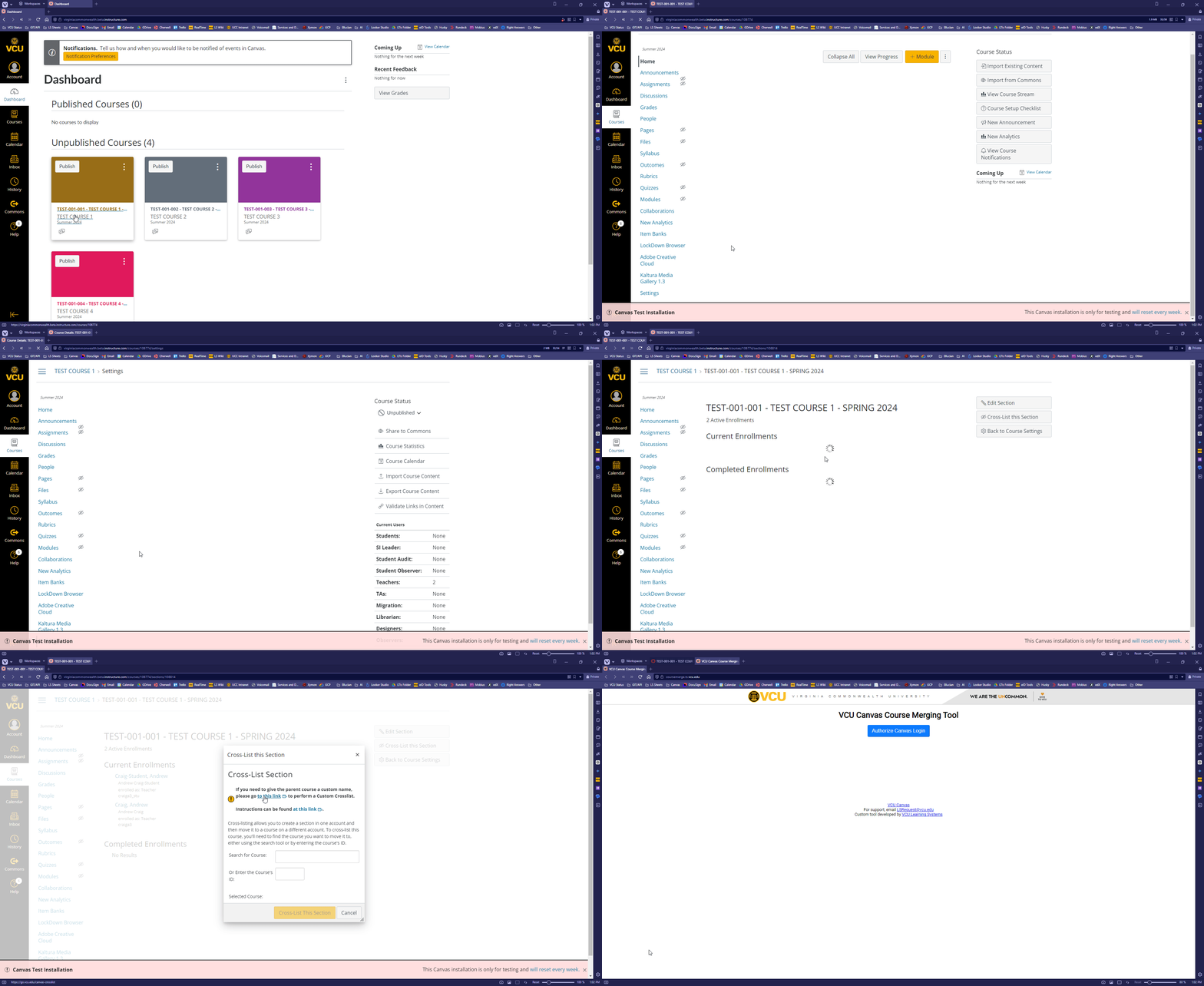
Navigate to and select your course as follows:
- Follow this path to select your course: Course Settings > Sections > [select your section]
- Click Cross List this Section, and then click on the link in the text box pop-up.

Using the Tool
- Authorize your Canvas Account connection as shown in the video below.

- Carefully review the instructions before continuing through each step. There are important items to note here, including how you can only merge courses where you are listed as the instructor.
- Select the term
- Select your assigned teaching courses for the term (You must select at least two courses in your list in order to continue)

- Provide a custom name

- Confirm the details before merging

- When the process is complete, either logout, or start over to merge another set of courses.
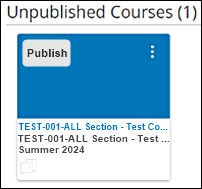
- Once completed, your Canvas Dashboard will have one course shell listed for the parent course created during this process.
This tool was developed by VCU Technology Services / VCU Learning Systems. For support email LSRequest@vcu.edu.