Closed Captions
Follow the instructions below to turn an edited transcript into closed captions using the "alignment tool"
Locate Your Kaltura Media
Option 1: In Canvas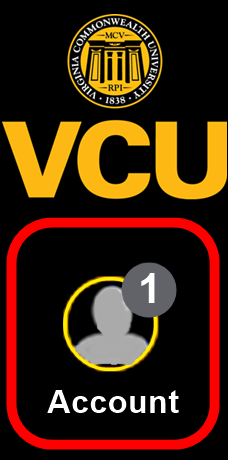
- Log in to Canvas
- Open your course.
- On the left side of the screen, click account
- Select the link to the media you want.
Locate Your Kaltura Media
Option 2: In Kaltura MediaSpace
- Log in to Kaltura MediaSpace.
- Select the link to the media you want.
Download the Auto-Generated Transcript
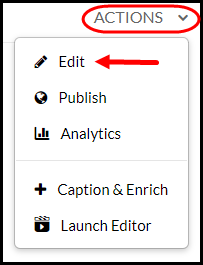
- From the "Actions menu" select Edit
- Select the Attachments tab [1].
- Generally, under "File Name" there will be two files listed. Beside the smaller file (look at the Size column) [2], select the Download button [3].
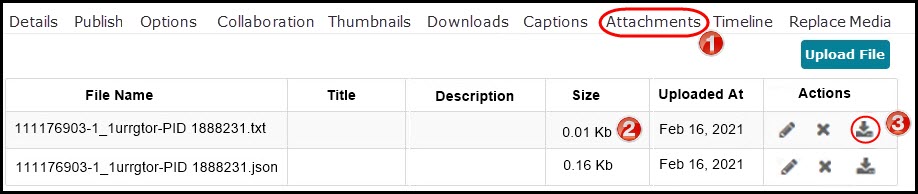
- A file with a name ending in .txt will download to your computer. Open the downloaded file. Note: The file will contain a single large block of text. Add additional spaces if desired.
- Fix issues in the text:
Note: This feature will realign out of sync captions. - Spelling errors
- Add missing words
- Punctuation
- Include speakers, non-speech sounds, and other auditory information
- Click Save.
Upload Edited Transcript Using Kaltura Alignment
Note: You can only use the Alignment feature once per media item in Kaltura.
- Return to your video in Kaltura.
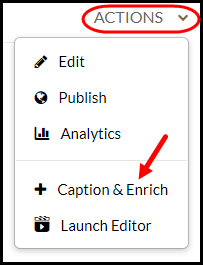
- From the "Actions menu", select Caption & Enrich
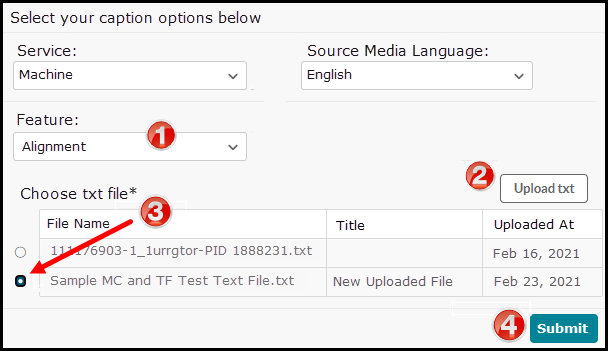
- Under "Order Captions & Enrichment Services", click the Feature dropdown and select Alignment [1]
- Select Upload txt. [2]
- The "Upload Attachment" screen appears. Enter a title and description of the file (optional.)
- Choose the Select File button.
- Locate the edited file on your computer, then select Open.
- Click Save.
- Return to the Kaltura Media's "Order Captions & Enrichment Services" section and select the radio button [3] beside the edited .txt file you just uploaded.
- Click Submit [4].
Under Order Captions & Enrichment Services there will be a confirmation message stating, "Your request has been received. Your video will be automatically updated upon completion."
The new closed captions will be automatically added to your media in the player's CC menu. This may take up to 30 minutes.